How to Open a 3MF File in Bambu Studio and Orca
This is a short post about a single mistake, because it's the one I get asked about most and it makes a genuinely expensive-feeling difference.
Open Project, not Import Model
A 3MF can hold two things: the shape, and the settings that go with it.
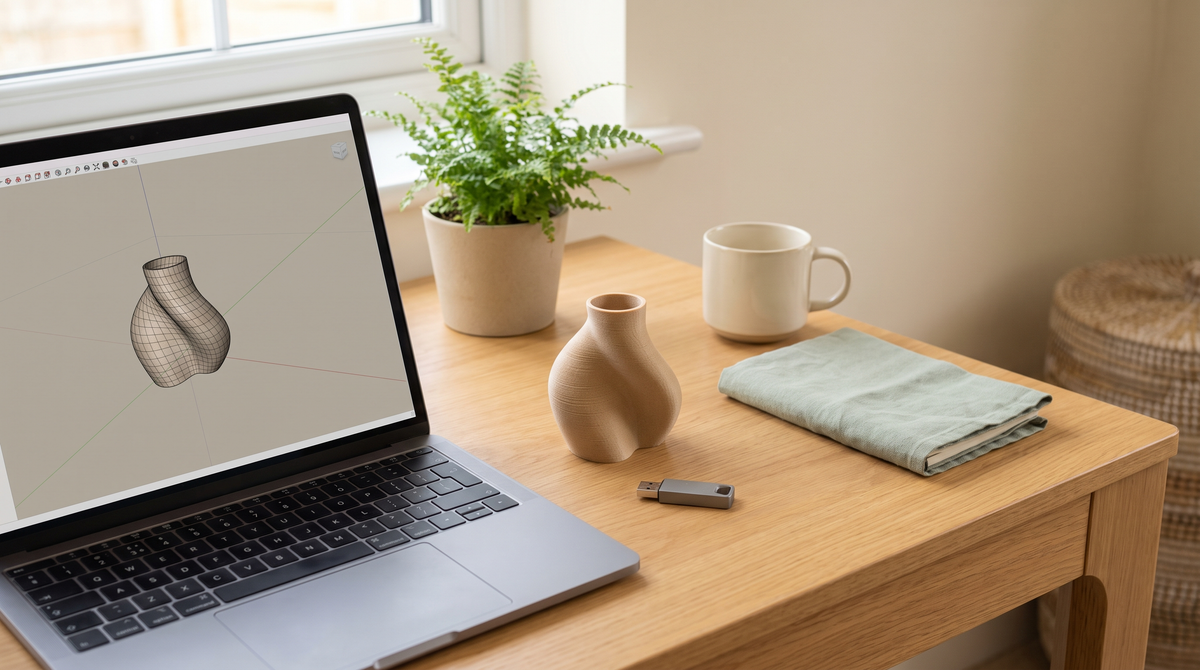
File → Open Project loads both. You get the model already positioned and oriented on the plate, with the print profile applied, supports configured, and the settings that produced the version in the photo.
File → Import → Import Model loads only the shape. Everything else is discarded and your current profile gets applied instead.
Both "work." One of them silently throws away the thing you were given. If you've ever opened a project file and wondered why it printed like any other STL, this is almost certainly why.
Dragging the file into the window generally does the right thing and opens it as a project, but if you're unsure, use the menu.
Then save the preset, or lose it
The second half of the same problem.
Settings that arrive inside a 3MF live in that project. Close the file and they're gone. Open a different model and you're back to your own profile.
If you want to keep them: click the print profile dropdown, choose Save as User Preset, and give it a name. Now it's a permanent profile you can apply to anything.
Worth doing for a profile you like, particularly if you print variations of the same kind of object.
When a 3MF won't open
"Unsupported file" or nothing happens. Usually the file is still zipped. 3MF is a compressed format and browsers sometimes wrap downloads in another zip. Unzip it first and look for the actual .3mf inside.
It opens but the plate is empty. The model may be positioned outside your printer's build area — a project saved for a larger machine. Select all and use the arrange function to bring it back onto the plate.
It opens but warns about the printer. Expected if the project was saved for a different machine. The geometry is fine; you'll need to pick your own printer profile and check the settings transferred sensibly.
The file is much smaller than expected. It's probably geometry only — a 3MF exported without settings. Not broken, just not a project file.
Does it work on non-Bambu printers?
Yes for the geometry. 3MF is an open format supported across most modern slicers including PrusaSlicer, Cura and Orca.
The embedded profile is a different question. A profile written for one machine won't transfer perfectly to a very different one — speeds and temperatures assume specific hardware.
That's exactly why I ship an STL alongside every 3MF. If the profile doesn't suit your setup, you still have the shape and can slice it with your own known-good settings.
Quick checklist
- Unzip the download if needed.
- File → Open Project (not Import Model).
- Check the model is on the plate and oriented as intended.
- Check the printer and filament profiles match what you actually have.
- Save as User Preset if you want to keep the settings.
- Slice and look at the preview before printing.
That last one is worth the ten seconds. The preview shows you where supports are going and roughly how long it'll take, and it catches the occasional surprise.
Did anyone else spend months using Import Model without realizing? Please tell me it wasn't just me. 🫠