Bambu Studio Settings: The Ones I Actually Change
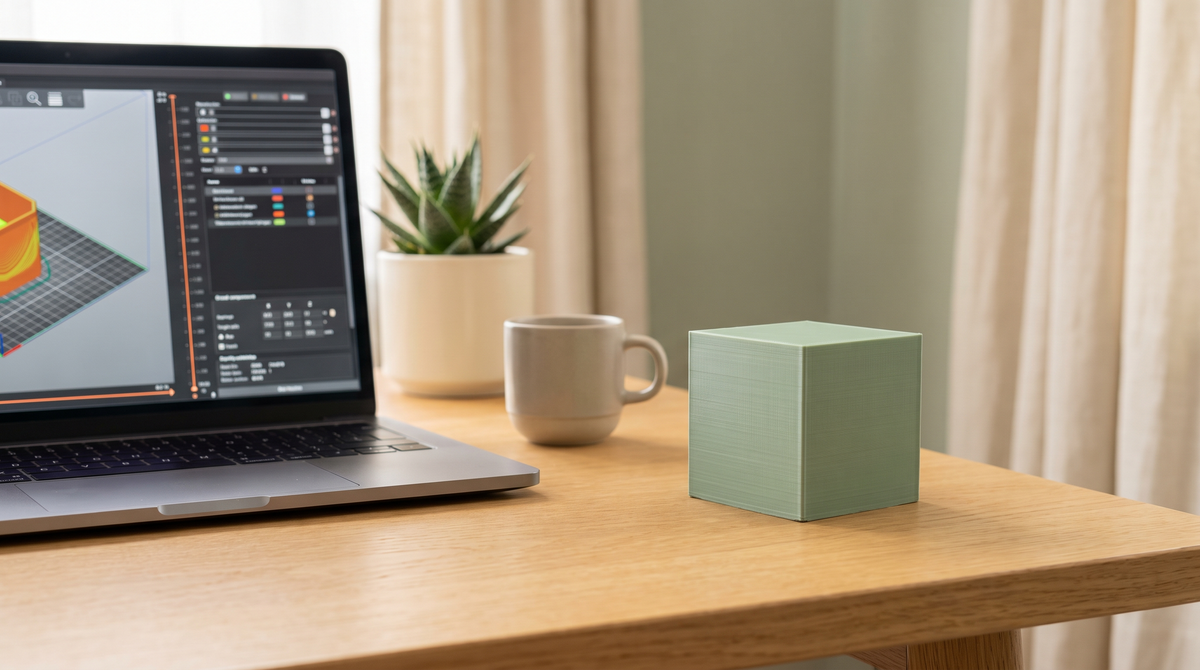
Open the settings panel in Bambu Studio and there are hundreds of options across a dozen tabs. It's genuinely intimidating, and most guides respond by explaining all of them, which doesn't help.
So here's the opposite: the eight I actually touch, and why.
1. Wall generator → Arachne
Quality tab.
The biggest single quality improvement available for small detailed prints. Classic uses one fixed line width and leaves gaps where features don't divide evenly; Arachne varies the width and fills them.
If you print anything with fine detail, thin walls or small text, change this first. It's usually the default now, but check.
2. Seam position → Aligned
Quality tab.
Every layer starts somewhere and leaves a mark. Random scatters those marks across the whole surface, which on a small print reads as poor quality. Aligned stacks them into a single tidy line you can rotate to the back.
Random is defensible on large organic models. On small pieces, Aligned wins.
3. Outer wall speed
Speed tab.
The outer wall is the only surface anyone sees, and it's a small fraction of total print time. Slowing it to 30–50mm/s on detailed pieces costs a few minutes and noticeably improves the finish.
Speed up infill and travel if you want to save time. Leave the outer wall slow.
4. Layer height
Quality tab.
0.2mm for most things. 0.12mm when there are curves or detail that show. 0.28mm for functional parts nobody looks closely at.
Remember it affects vertical resolution only. It won't rescue small horizontal detail — that's a nozzle and wall generator problem.
5. Supports: type and Z distance
Support tab.
Two things matter here. Use tree supports for most small and organic shapes — fewer contact points, easier removal, less material.
And check the top Z distance. If it's zero, supports weld to your model and you'll damage the print removing them. One layer height is a sensible value.
6. Brim
Other/Adhesion.
Not always on, but on for anything tall, anything with a small footprint, and anything that's lifted at the corners before.
Costs a couple of grams and a minute. Prevents the corner lift that kills long prints.
7. Avoid crossing walls
Quality tab.
Reroutes travel moves so the nozzle stays over infill rather than dragging across visible outer surfaces. Any oozing lands where it won't show.
Small print time cost, consistently cleaner surfaces.
8. Filament temperature
Filament tab.
Not a fixed number — something you determine per filament brand with a temperature tower from the calibration menu.
Two spools both labelled PLA can want temperatures 15°C apart. The number on the box is a starting point.
What I leave alone
Infill percentage. 15% is fine for nearly everything. Walls provide strength on small parts, not infill.
Retraction. The defaults on a direct drive machine are close to right. Adjust only after ruling out wet filament and temperature.
Acceleration and jerk. Tuned by the manufacturer for that specific machine. You will not improve on it by guessing.
Anything in the machine tab. Unless you've physically modified the printer.
Save your changes as a preset
This is the step people skip and then wonder why their settings vanished.
Once you've got a combination you like, click the profile dropdown and choose Save as User Preset. Name it something meaningful. Otherwise your changes live only in the current project and disappear when you close it.
Same applies to settings that arrive inside a 3MF project file — they're in that project until you deliberately save them as a preset of your own.
Which setting took you longest to understand? Arachne was mine — I ignored it for months. 👀